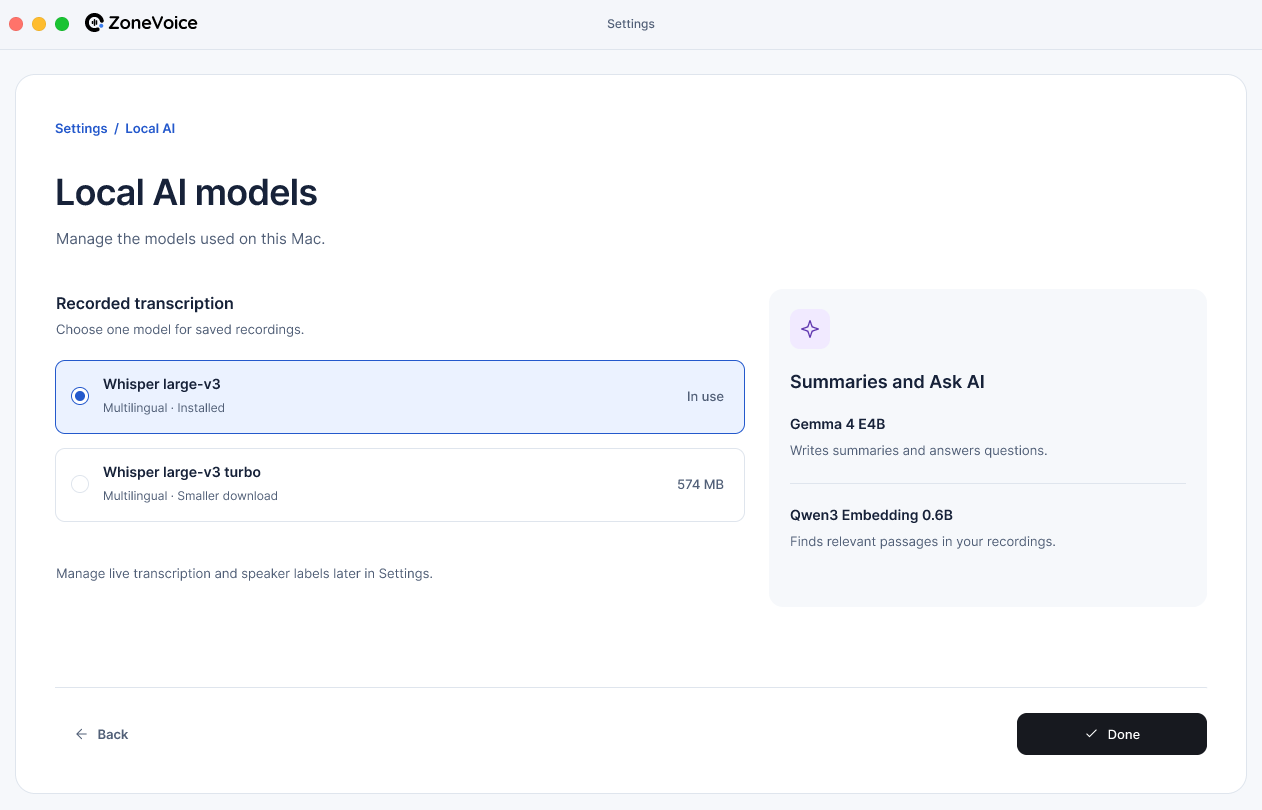
ZoneVoice and Granola both offer transcription and AI summaries, but differ in how they process and store your conversations. Granola uses cloud services, while ZoneVoice processes conversations on your computer in local mode, keeping recordings and notes on your device without cloud uploads.
Which Tool Is Right for You?
Choose ZoneVoice if...
You want to process sensitive conversations on your own computer, import recordings you already have, and keep the original audio to check later.
Choose Granola if...
You like jotting down key points during meetings and want AI to turn those notes and live transcripts into fuller notes you can share.
How Does ZoneVoice Protect Your Data and Privacy?
Local processing
ZoneVoice — Transcribe and summarize on your computer in local mode. Once the required models are installed, you can keep working offline.
Granola — Uses cloud services for transcription and AI summaries. Cached notes can be accessed offline, but this is different from generating transcripts and summaries offline.
Local storage
ZoneVoice — Recordings, transcripts, and notes stay in your local workspace, ready to replay, organize, and export.
Granola — Stores transcripts and notes in the cloud, with local caching. It does not retain meeting audio for playback.
Sharing controls
ZoneVoice — Review your content locally and redact sensitive information before exporting a version for others.
Granola — Notes are private by default, with sharing permissions you control. Enterprise plans also offer admin-managed PII redaction in beta.
Beyond Transcription: Capture, Understand, and Verify
Can I use a recording I already have?
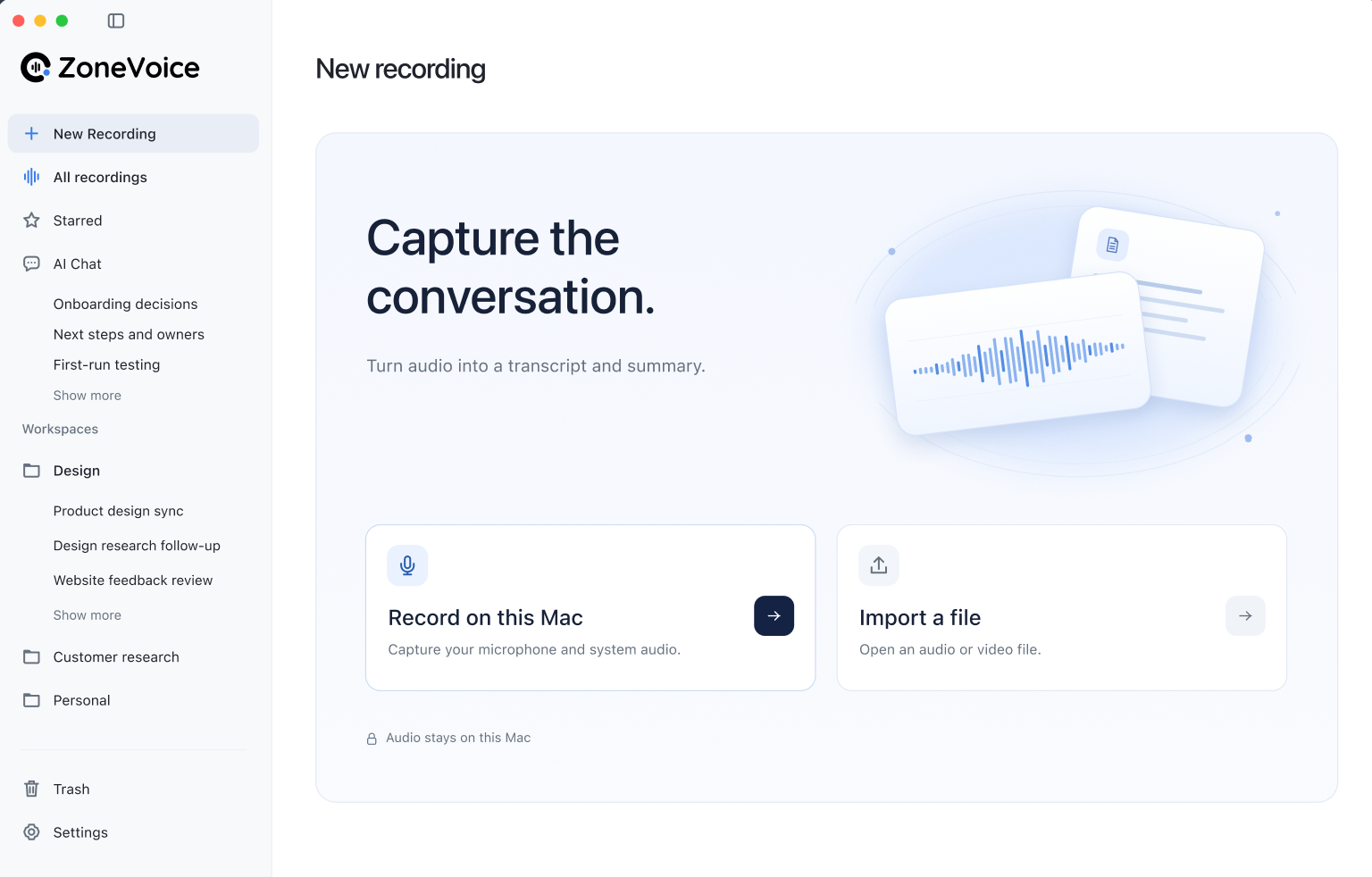
ZoneVoice — Record directly or import existing audio. You can also use EverVoice, our AI Note Taker, to capture in-person conversations and bring those recordings into ZoneVoice for transcription and summaries.
Granola — Captures conversations on desktop, mobile, and Apple Watch. Desktop uses microphone and system audio. Mobile supports in-person conversations and outbound calls made through its built-in dialer, but cannot capture audio from other meeting apps. Apple Watch recordings are sent through a paired iPhone for processing. Existing audio files cannot be imported.
What do I get after a meeting?
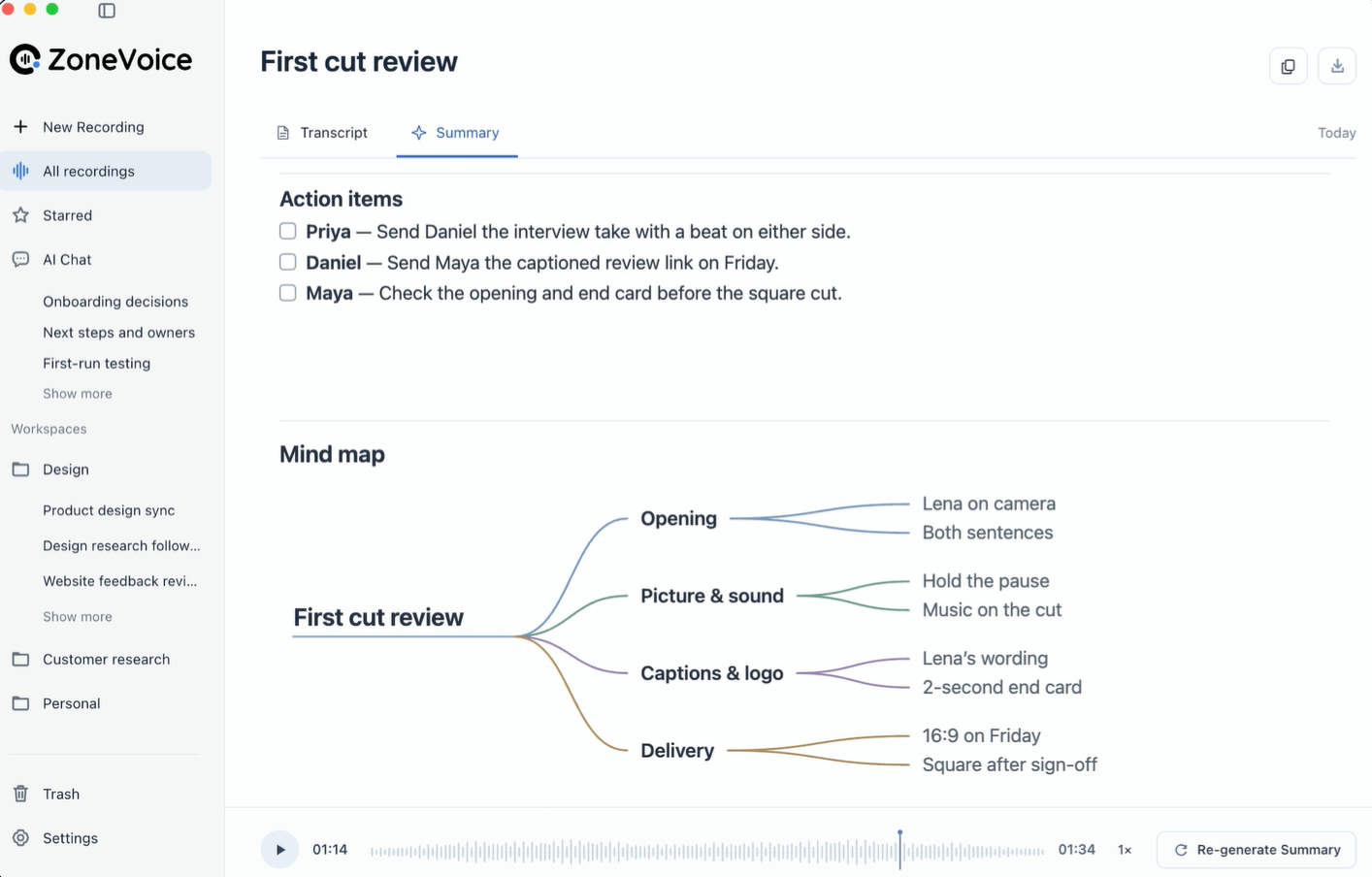
ZoneVoice — Brings summaries, action items, and mind maps together in rich-text notes, helping you see both the key takeaways and how ideas connect. A wide range of summary templates also supports meetings, interviews, brainstorming sessions, and more.
Granola — Organizes meetings into text-based notes, summaries, and action items, with customizable templates.
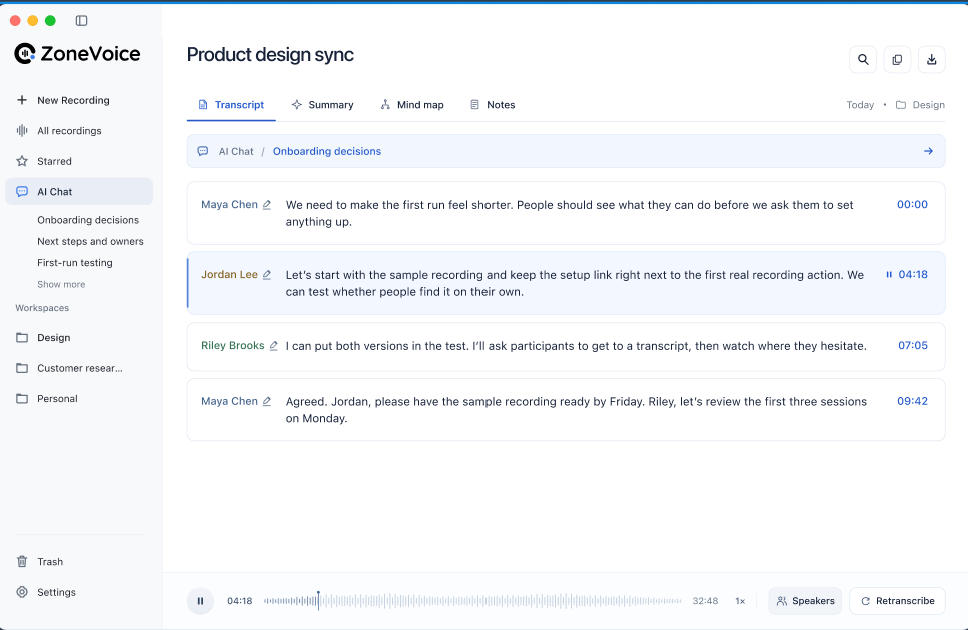
Can I check a quote against the recording?
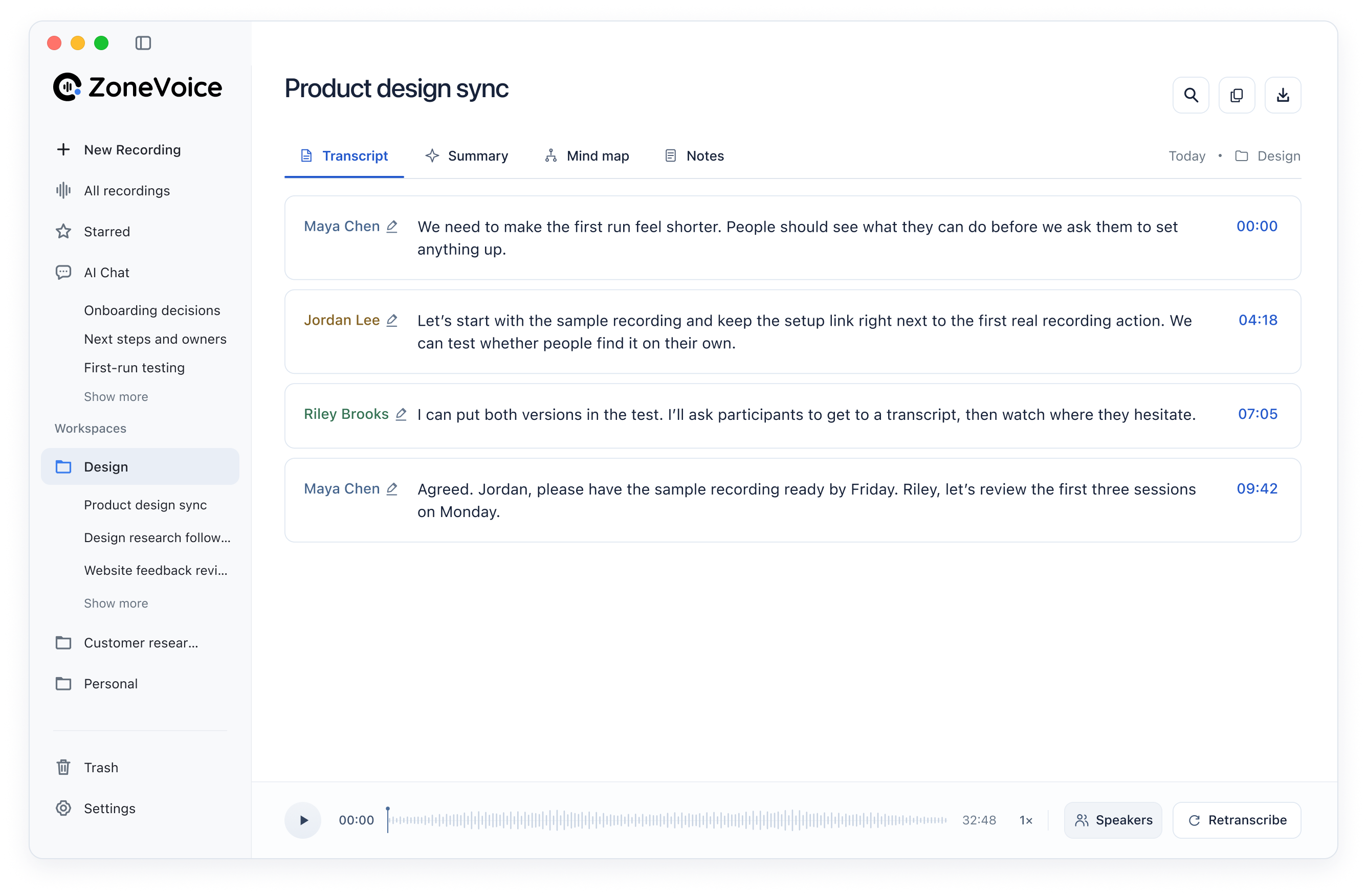
ZoneVoice — Keeps the original recording. Use transcript timestamps to replay relevant passages and check the wording, tone, and context.
Granola — Lets you review transcripts and supporting text, but does not retain meeting audio for playback.
How the features stack up
| Feature | ZoneVoice | Granola |
|---|---|---|
| AI models | Choose a local summary model and generate summaries on your computer. | Uses its selected cloud models for transcription and summaries. Chat model choices depend on your plan. |
| Language support | Transcription and summaries in 99+ languages. | 31 desktop languages; 17 mobile languages. |
| Mixed-language conversations | Supports conversations that switch between languages. | Desktop Auto mode supports switching among supported languages. On mobile, Granola selects one language and recommends using a single language per meeting. |
| Custom vocabulary | No limit on the number of custom terms. | Up to 30 personal terms and 50 workspace terms. |
| Transcript editing | Edit the transcript after transcription. | Direct transcript editing is not currently supported; editing an enhanced note does not change the source transcript. |
| Speaker identification and voice profiles | Distinguish speakers, confirm names, and save voice profiles to help suggest matches in later recordings. Matches can be reviewed and corrected. | Desktop speaker tags use participant names and active-speaker information from the meeting platform. They cannot distinguish individuals sharing the same meeting device. |
| AI Chat Scope | Search all recording documents and ask AI questions across them. | Ask across accessible notes, selected meetings, or folders. Basic Chat covers the last 30 days; Business and Enterprise include full history. |
| External AI access | Enable connections when needed and authorize a specific workspace. External AI can read permitted notes and transcript excerpts, not raw audio or voice-profile data. | MCP provides authorized access to meeting content. Access depends on permissions, plan, and workspace controls; Core processing still uses cloud services. |
| Export and reuse | Export Markdown summaries, TXT transcripts, SRT subtitles, and original audio. | Bulk CSV export, Markdown copying, and note-link sharing. |
| Devices and feature availability | Supports multiple devices and versions. | Features vary by platform: no Granola Chat on iPad, no Chat file uploads on mobile, and templates are desktop-only. |
How does ZoneVoice change the way you work?
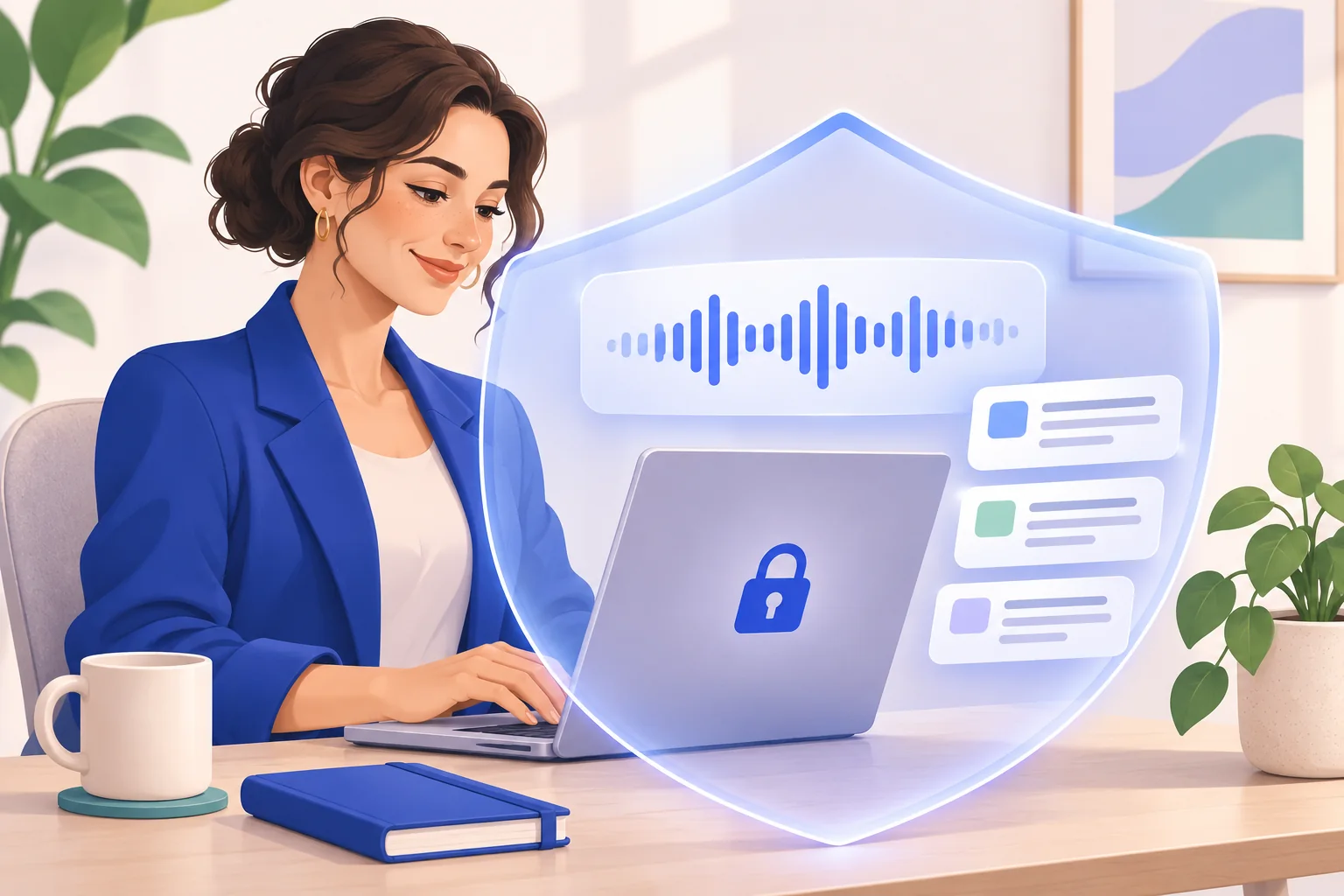
Sensitive Conversations
Keep Important Content on Your Device.
Organize confidential discussions or personal recordings with local transcription and summaries. Your recordings and notes stay on your computer, and you decide what to keep or share.

External Sharing
Share Only What Is Needed.
Prepare key points from local material and redact names, contact details, amounts, or other sensitive information before exporting a version for others.
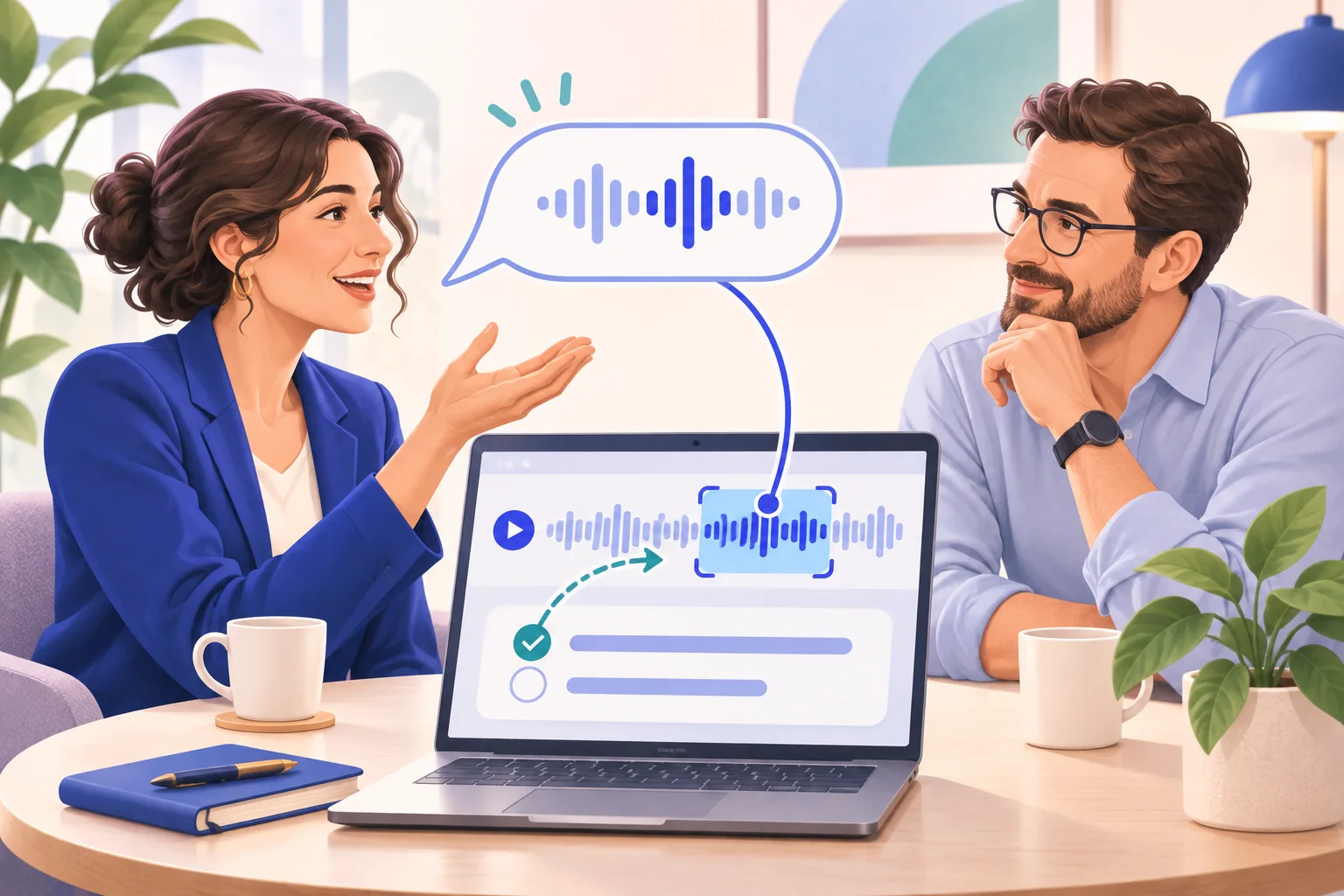
Customer Conversations
Find Needs and Commitments.
Turn customer recordings into summaries and action items. Before following up, find the requirements and commitments that matter, then replay the original conversation to check the details.
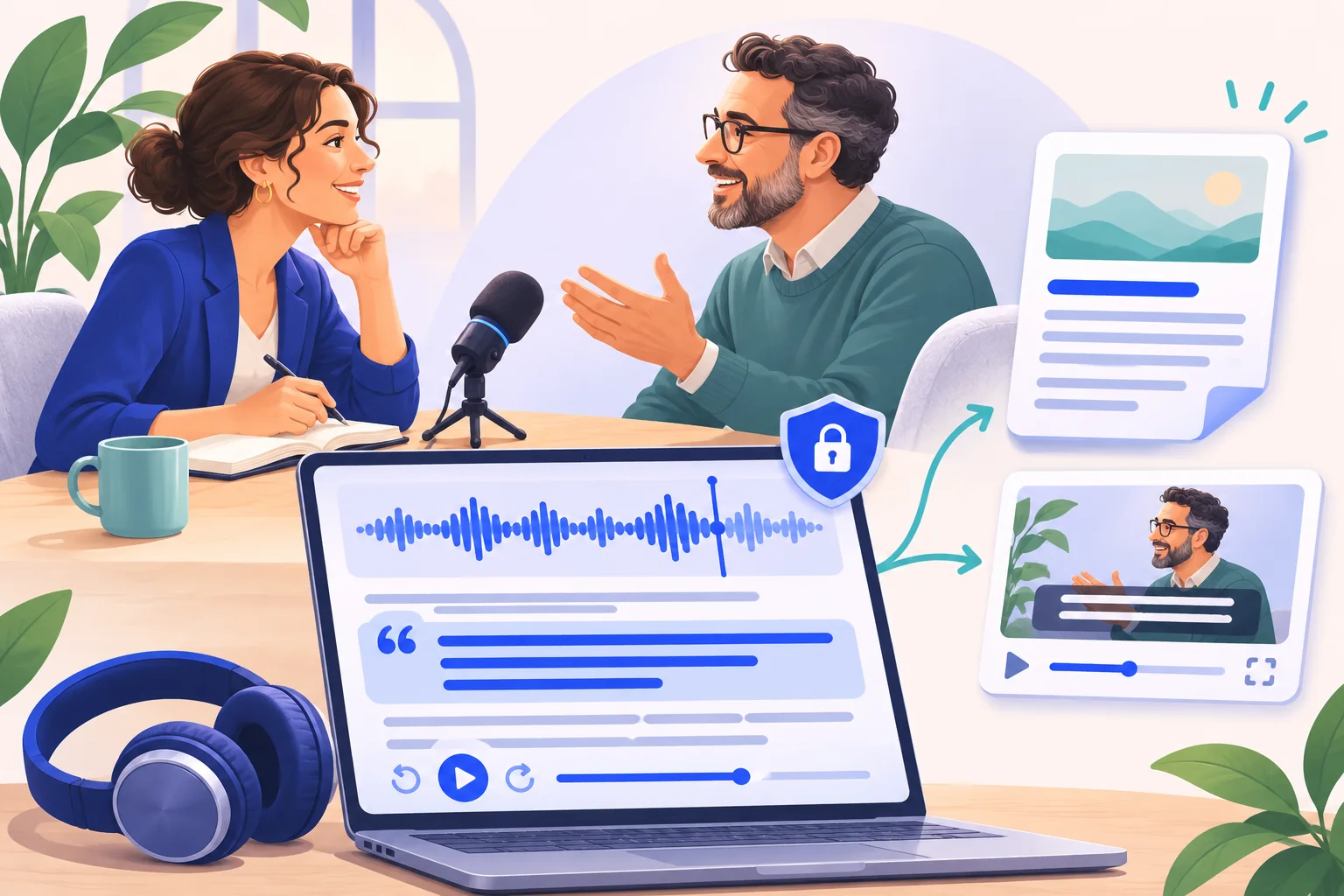
Interviews and Content
Get the Quote Right.
Import interview audio or video, find important passages, and replay them in context. Export text or subtitles for articles and video production.

Work on the Go
Keep Going Without Wi-Fi.
Review existing recordings while traveling or working with an unreliable connection. With the required models installed, you can transcribe and summarize offline.
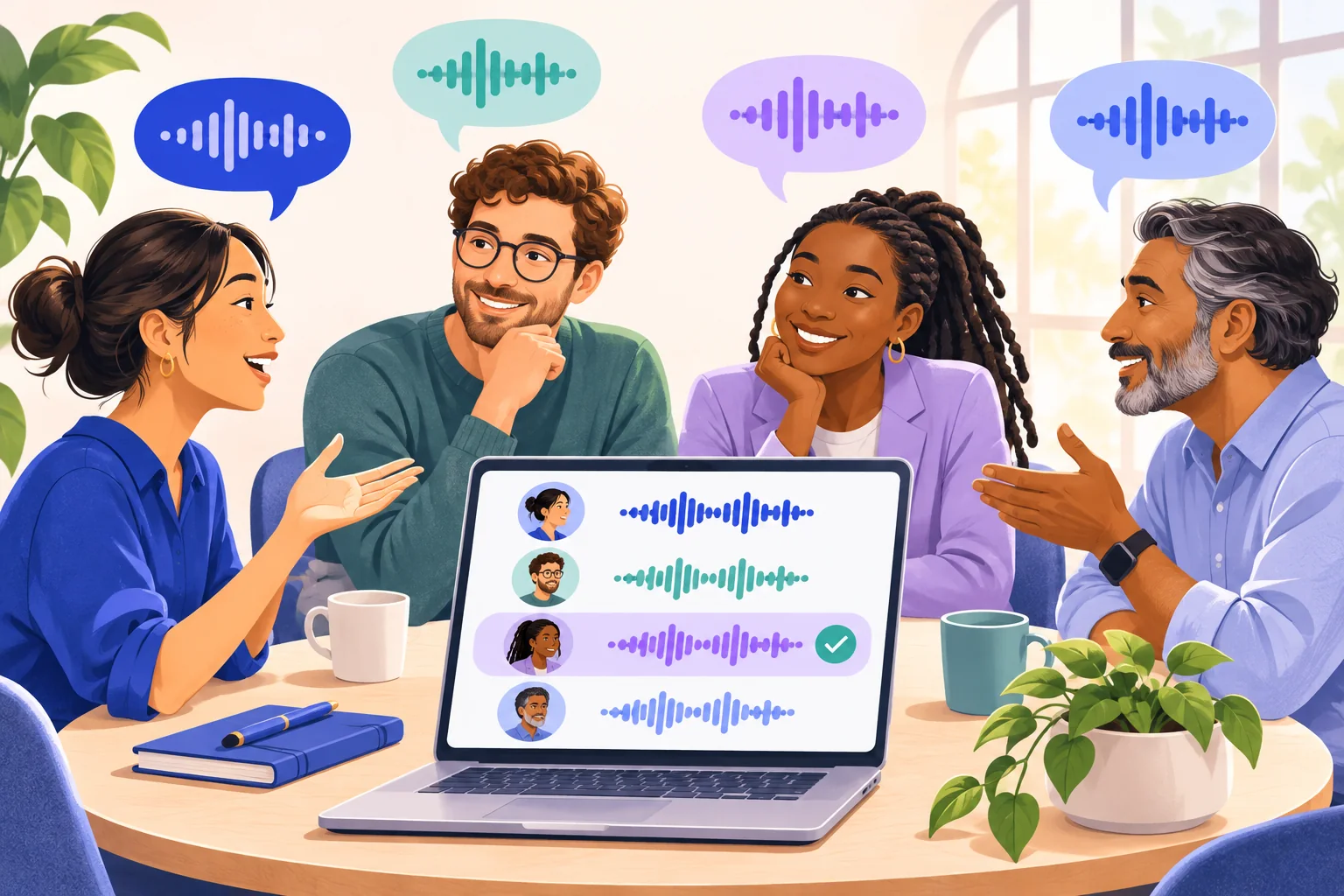
Group Discussions
Make Sense of Different Perspectives.
Distinguish voices and review who raised an idea, question, or commitment. For saved voice profiles, ZoneVoice can suggest familiar speakers for you to confirm or correct.
Get Started with ZoneVoice in 3 Simple Steps
Try one recording to experience local transcription, AI summaries, and original-audio verification.
Get Access and Set Up
Request access to the ZoneVoice website, install the app, and download the required local AI models.
Record or Import
Record a conversation or choose an existing audio or video file. Use local mode to generate a transcript, summary, and action items.
Check and Keep What Matters
Use timestamps to replay key passages. Verify names, numbers, and decisions, then save or export the content you need.